Text to Reel AI: Make an Instagram Reel From One Prompt
Text to reel AI: turn one prompt, or your own media, into an editable Instagram Reel with planned scenes, captions, voice, music, beat sync and follow-up AI edits.

Most AI video tools make you choose between two bad extremes.
One gives you an empty timeline and expects you to know every editing button. The other accepts a sentence, generates a locked video, and leaves you stuck when the music, caption, or third scene feels wrong.
An AI prompt video editor should work differently: you describe the outcome in normal language, the editor builds a usable first draft, and the result remains editable.
That is the idea behind the AI Editor Assistant in MakeAIReel's Create Studio. It can turn a brief into a complete short-form draft, edit only the photos and videos you upload, or change a reel that is already on your timeline. You can then review the scenes, captions, sound, layout, and timing before export.
This guide explains how that workflow works, which mode to use, and how to write prompts that produce better Instagram Reels, TikToks, and YouTube Shorts.
What is an AI prompt video editor?
An AI prompt video editor lets you edit by describing intent, not by manually specifying every timeline operation.
Instead of doing this:
Import six files, trim clip two, split clip four, add a zoom keyframe, create captions, find music, lower its volume, and move the product shot into a split layout.
You can ask:
Make a 30-second energetic launch reel from these shoe photos and clips. Open with the red shoe close-up, cut on the beat, keep the product visible during the offer, use bold captions, and end with “Shop the drop.”
The prompt is not the finished video. It is the creative brief the editor turns into structured decisions: duration, scene order, visual source, crop, caption copy, motion, voice, music, sound effects, and transitions.
That distinction matters. A text-to-video generator primarily creates pixels. A prompt-based editor must also understand the assets and controls of an editable project.
One assistant, three different reel workflows
“Make a reel” can mean three very different jobs. Choosing the right workflow prevents the assistant from generating visuals when you wanted it to use only your footage—or from merely tweaking one clip when you expected a complete story.
| Workflow | Start with | Best for | What the assistant does |
|---|---|---|---|
| One Prompt Reel | A story, topic, or creative brief | Faceless stories, explainers, promos, concept reels | Plans the full reel, finds or creates suitable visuals, adds captions, voice, music, and editing |
| My Media Reel | Your uploaded photos, videos, and optional audio | Product launches, travel recaps, portfolios, UGC, event edits | Uses only your supplied media, follows placement instructions, and can beat-sync cuts to your track |
| AI Edit | A reel already open in the studio | Quick changes and follow-ups | Changes captions, sound, timing, layout, effects, stickers, speed, or other supported edit settings |
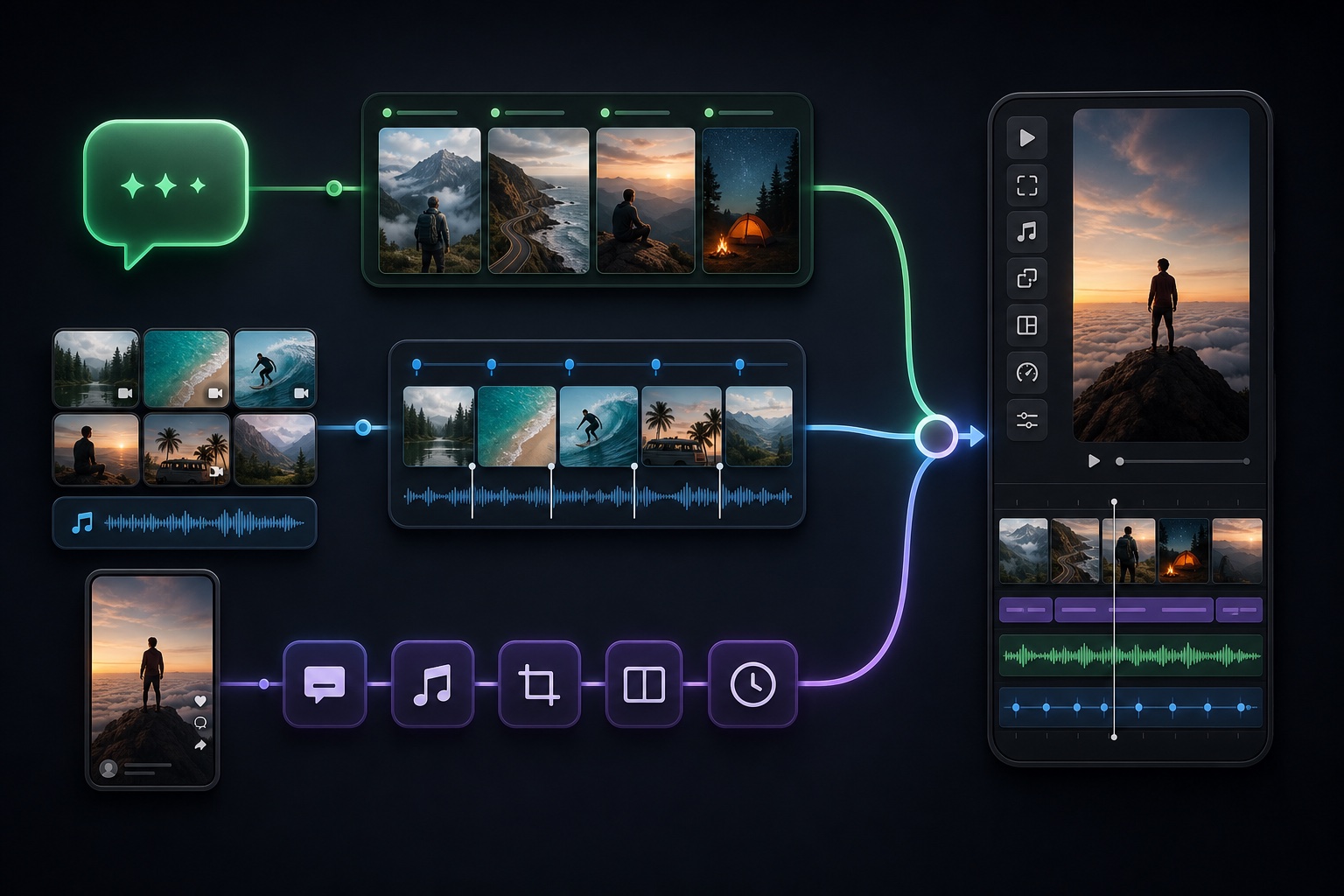
The important part is control. My Media Reel does not silently replace your product with a generated lookalike. One Prompt Reel can source visuals when you have none. AI Edit works on the draft you already have.
How One Prompt Reel turns an idea into a draft
A good one-prompt workflow is not one giant model call. It behaves more like a small production team passing a clear plan from one stage to the next.
1. It reads the brief before touching the timeline
The assistant first extracts the practical constraints: platform, aspect ratio, duration, audience, tone, visual style, required lines, safety restrictions, and call to action.
If you do not specify a duration, MakeAIReel uses 30 seconds. You can request a shorter duration or anything up to 60 seconds; one-prompt reels currently do not exceed one minute.
2. It converts the idea into scenes
“Make it cinematic” is not a scene plan. The assistant still needs to decide what viewers see in the hook, setup, development, turn, and ending.
Each scene gets a purpose and a time budget. That is how a 30-second story avoids spending 12 seconds on an introduction and rushing the payoff into the last second.
3. It chooses a consistent visual strategy
Visual consistency is more important than using every available source. Depending on the brief, the draft can lean on suitable stock footage or a consistent set of generated images with subtle movement. User attachments can also be reserved for specific moments.
The goal is not to alternate randomly between unrelated visual styles. It is to choose a coherent direction that supports the story and still keeps the production affordable.
4. It builds captions, voice, and sound around the same story
Captions should not be decoration pasted over a finished cut. Their wording and timing need to match the scene they explain.
The assistant can add a styled caption to each useful story beat, generate a voiceover when the reel needs narration, choose background music that fits the mood, and place sound effects where they add emphasis. Captions, voice, and visuals come from the same scene plan, so they are less likely to tell three different stories.
If caption readability is your main concern, read our guide to auto-captions for Reels.
5. It returns an editable draft
The result opens as a normal studio project. You can change a weak caption, replace a shot, adjust a layout, remove a sound, or ask the assistant for a follow-up edit.
That review step is not a failure of AI. It is where your product knowledge, taste, and audience context improve the automated first cut.
A prompt formula that produces better reels
You do not need to write a screenplay. A useful prompt simply answers seven questions:
- What are we making? Product launch, story, tutorial, recap, meme, or explainer.
- Who is it for? New customers, gym beginners, music fans, founders, or another clear audience.
- How long is it? Omit for 30 seconds, or request up to 60 seconds.
- What must happen? Give the essential story beats or product facts.
- What should it feel like? Funny, premium, urgent, calm, cinematic, playful, or educational.
- What media must be used? Name the attached photo, clip, or audio and where it belongs.
- How should it end? CTA, punchline, reveal, logo frame, or final caption.
Here is a solid example:
Create a 30-second vertical launch reel for a sustainable running shoe aimed at first-time runners. Use my red-shoe photo as the opening close-up and show it again during the final offer. Use only my uploaded product clips for the middle. Cut to my attached music on strong beats, add short bold captions, keep the tone energetic but premium, and end with “Run lighter. Shop now.”
Notice what this prompt does not include: camera coordinates, font pixels, transition IDs, or a frame-by-frame edit decision. Those can be follow-up changes after you see the draft.
When you want the AI to edit only your media
For a brand, the most valuable AI reel creator is often not a generator. It is an editor that respects the footage you already paid to shoot.
Choose My Media Reel, attach your files, and say explicitly that the reel must use uploaded media only. The assistant can:
- Arrange one video or several clips into a story
- Mix product photos with user-supplied footage
- Follow instructions such as “use photo two at 0:08”
- Use your uploaded music as the background track
- Beat-sync scene changes when requested
- Add captions, crops, motion, effects, and supported layouts
- Avoid generating replacement images or sourcing unrelated stock
For photo-heavy edits, our images-to-beat-synced Reels guide has more practical examples.
Example: edit a travel reel from uploads only
Make a 25-second travel reel using only these seven clips. Start with the plane-window shot, keep the beach reveal for the first beat drop, use the attached song, and cut on the strongest beats. Add location captions but no voiceover. End on the night-market clip and hold the final frame for one second.
The phrase “using only these clips” is the guardrail. The rest tells the assistant how to shape them.
Follow-up editing: talk to the draft, not from scratch
The first prompt creates direction. Follow-up prompts should make focused changes.
Useful examples include:
- “Remove the current background track and add funny music at a lower volume.”
- “Keep the first three scenes, but make the hook faster.”
- “Change clip four to a top-and-bottom split layout and put the product photo below.”
- “Make every caption shorter and keep it inside the safe area.”
- “Slow down the reveal, then speed-ramp into the last scene.”
- “Remove the sound effect from clip two.”
- “Use the uploaded audio and beat-sync all scene changes.”
Focused instructions are easier to verify and less likely to disturb parts of the reel you already like. If you prefer direct manipulation, the same draft can also be adjusted manually in the editor.
What AI should decide—and what you should review
An AI editor is good at turning a clear brief into many coordinated mechanical choices. It does not know your audience as well as you do.
Let the assistant handle the first pass of:
- Scene breakdown and approximate timing
- Visual search or image direction
- Draft caption copy and placement
- Voiceover and background-music selection
- Beat-aligned cuts and sound-effect suggestions
- Repetitive timeline setup
Before publishing, review:
- The first two seconds: Is the subject immediately clear?
- Continuity: Do people, products, colors, and environments feel consistent?
- Claims: Are prices, features, names, and promises accurate?
- Caption safety: Is important text clear of platform controls?
- Audio balance: Can you understand the voice without the music fighting it?
- The ending: Does the reel deliver the promised payoff or CTA?
Meta's own guidance for Reels ads emphasizes vertical 9:16 video, quality audio, and keeping key messages in the safe zone. Those are useful checks for organic creator reels too, even when you are not running an ad (Meta for Business).
Originality also matters. Meta reported in 2026 that 75% of Instagram recommendations in the US were coming from original posts. Treat AI as a production assistant for your idea—not a shortcut for reposting someone else's work (Meta).
Common prompt mistakes
“Make a viral reel”
This gives the editor no audience, story, asset rule, or outcome. “Viral” is not an editing instruction, and no tool can guarantee distribution.
Asking for conflicting styles
“Minimal, chaotic, luxury, meme, documentary, neon, and vintage” is not more detailed; it is less decisive. Choose one primary tone and, at most, one contrast.
Forgetting to identify attachments
If one image is the actual product, say so. If one audio file must remain untouched, say that too. The assistant cannot infer business importance from a filename like IMG_4821.jpg.
Over-directing before seeing a draft
A 500-word shot list can make a simple 20-second reel brittle. Start with the non-negotiables, inspect the result, and use follow-ups for precision.
Is prompt-based editing better than a traditional timeline?
It is better for starting and for high-level revisions. A manual timeline is still useful when you want frame-level control.
The strongest workflow combines both:
- Explain the outcome in a prompt.
- Let AI build the coordinated first draft.
- Review the reel as a viewer would.
- Use follow-up prompts for broad changes.
- Use direct controls for tiny visual adjustments.
This is the same practical middle ground we describe in our broader AI Reel Editor guide: automation should remove repetitive work without locking you out of your own project.
Make your first reel from a prompt
Open MakeAIReel Create Studio, launch the AI Editor Assistant, and choose the workflow that matches your job:
- One Prompt Reel when you have an idea and want the assistant to build the complete draft
- My Media Reel when your uploads must be the only visual source
- AI Edit when a reel already exists and you want to change it conversationally
Describe the outcome, include the non-negotiables, and let the first draft give you something concrete to react to. You do not need to learn every editing control before you can tell a good story.
If you are starting with product images, continue with How to Turn Product Photos Into Videos. If you want the full beginner workflow, see How to Make Reels With AI for Free.
Frequently Asked Questions
Can AI make an entire Instagram Reel from one prompt? +
How long can a one-prompt reel be? +
Can the AI edit only my uploaded photos and videos? +
Can I change the reel after the AI creates it? +
Does an AI reel maker guarantee views? +
Want to automate your video workflow?
Get Started with MakeAIReel